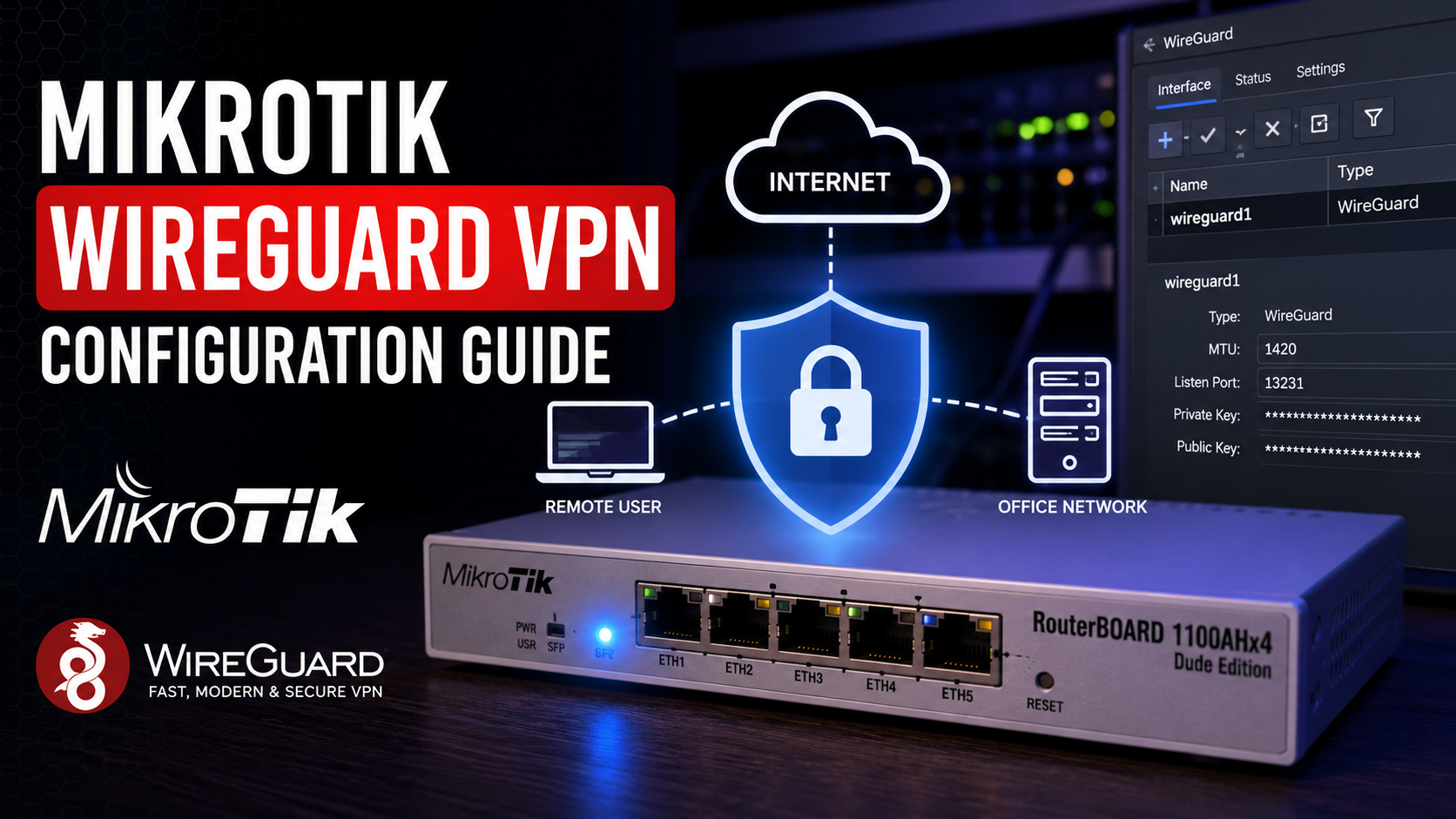
MikroTik WireGuard VPN Configuration Guide
WireGuard is one of the fastest and most secure VPN protocols available for MikroTik RouterOS. It offers excellent performance, simple configuration and modern cryptography, making it an ideal choice for remote access, site-to-site VPNs and secure business connectivity.
This guide explains how to configure a WireGuard VPN on MikroTik RouterOS from scratch, including interface creation, peer configuration, routing, firewall rules and security recommendations.
Why Choose WireGuard?
WireGuard provides several advantages over traditional VPN protocols:
- High performance
- Low CPU usage
- Modern encryption
- Simple configuration
- Fast connection establishment
- Cross-platform support
Requirements
Before starting, make sure you have:
- MikroTik RouterOS 7 or later
- Public IP address or Dynamic DNS
- Administrator access
- WireGuard client installed on Windows, macOS, Linux, Android or iPhone
Step 1 — Create WireGuard Interface
Create a new WireGuard interface in RouterOS.
Choose a listening port, generate a private key automatically and assign an IP address to the interface.
/interface wireguard
add listen-port=13231 name=wireguard1
Step 2 — Assign IP Address
/ip address
add address=10.0.0.1/24 interface=wireguard1
Step 3 — Add Peer
Create a peer using the client’s public key.
Define Allowed Address and optionally configure Persistent Keepalive for roaming clients.
Example
/interface wireguard peers
add interface=wireguard1 public-key=”CLIENT_PUBLIC_KEY” allowed-address=10.0.0.2/32
Step 4 — Configure Firewall
Allow incoming WireGuard traffic.
Open the WireGuard listening port in the firewall.
Example
/ip firewall filter
add chain=input protocol=udp dst-port=13231 action=accept
Step 5 — Configure NAT
/ip firewall nat
add chain=srcnat out-interface=pppoe-out1 action=masquerade
Step 6 — Configure Client
Import the generated configuration into the WireGuard application.
Verify that:
- Tunnel is active
- Ping works
- Internal resources are reachable
- Internet traffic follows the expected routing policy
Common Problems
Problem:
Handshake does not appear.
Possible causes:
- Closed UDP port
- Wrong public key
- Incorrect AllowedIPs
- Missing firewall rule
- Incorrect endpoint address
- ISP blocking UDP traffic
Best Practices
- Use RouterOS 7.x
- Use strong private keys
- Enable Persistent Keepalive for roaming clients
- Restrict AllowedIPs
- Keep RouterOS updated
- Backup your configuration regularly
- Monitor active peers
WireGuard provides a fast, lightweight and secure VPN solution for MikroTik RouterOS. Proper configuration ensures reliable remote access, excellent performance and strong security for both home and business environments.